ReadLearner is a browser extension that helps you learn foreign languages through reading online.
📧 Create an Account
If you don't yet have an account, you need to create an account with your email here: Sign Up
⏬ Download Browser Extension
Download the ReadLearner browser extension for Chrome. Download
⚙️ Initial Setup & Login
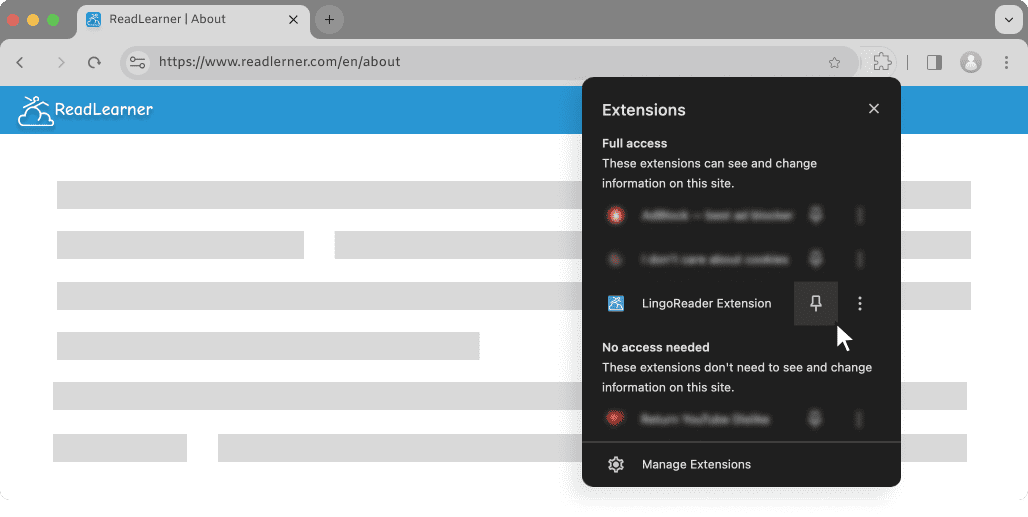
After you install the browser extension, click the puzzle piece on the top right of your browser.

This will open a drop-down of all your Chrome Extensions. From here, simply click the little pin next to the ReadLearner extension so that you can pin this extension in the toolbar. This will make it easier to activate and deactivate the extension frequently.
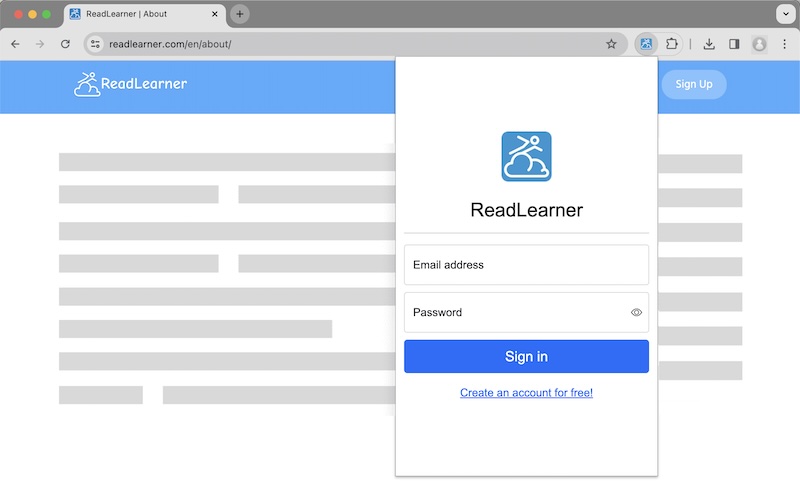
Then click the extension icon in the toolbar to open the extension popup window. Log in with your email and password.
🌎 Configure Languages
After logging in, select your native and target languages and click Save.
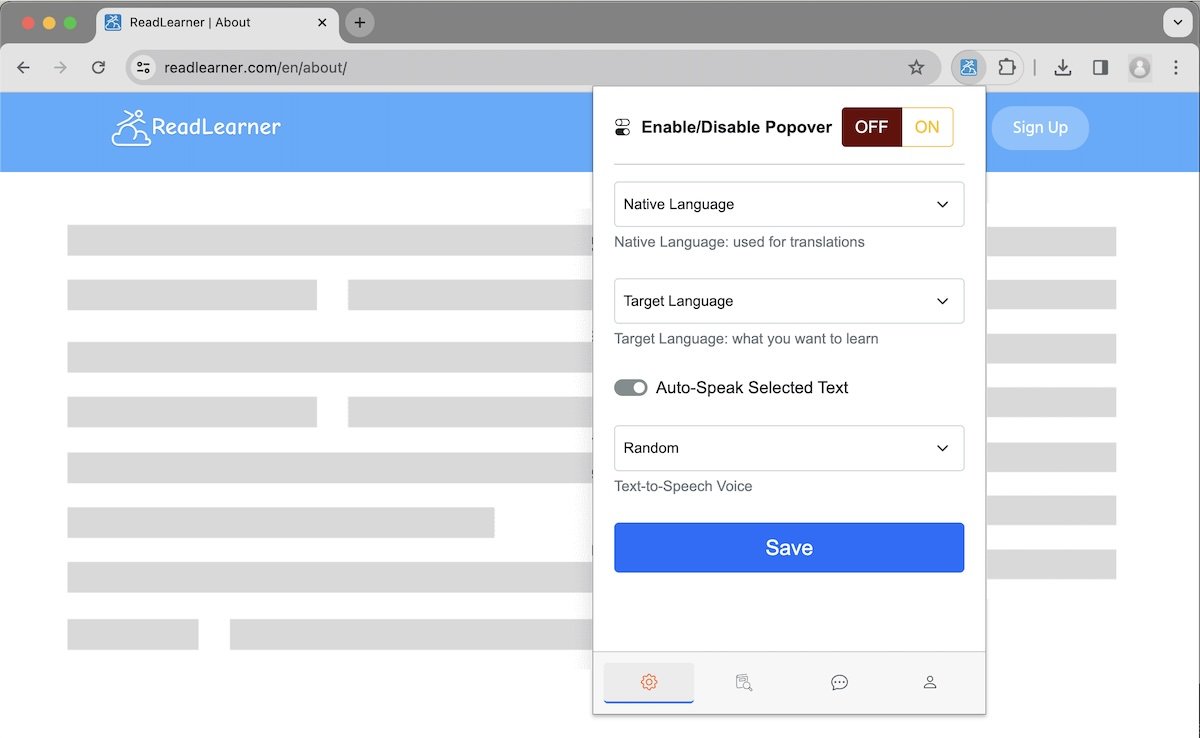
- Native Language is used for translations and explanations. You can change this anytime.
- Target Language is the language you want to learn. You can change this anytime. If you're learning multiple languages, you will need to update this setting each time you switch to reading in a different language. This is important for getting accurate definitions and pronunciations.
📖 Start Reading
Now you're ready to start reading! Open any webpage in your target language and start reading. Don't know what to read? Check out our recommendations: Reading Recommendations
When you have a webpage open in your target language, simply click the extension icon in your browser toolbar and then use the Enable/Disable Popover buttons at the top to toggle the ReadLearner popover.
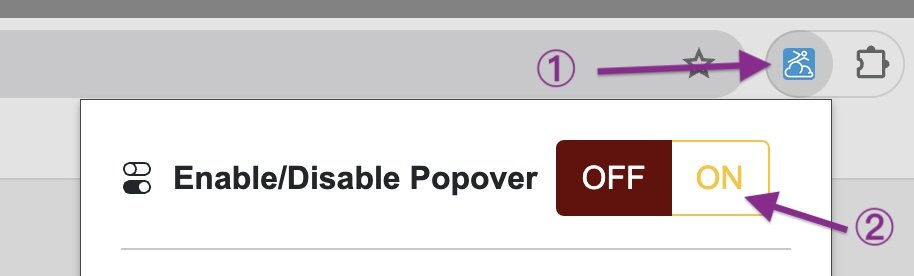
If you only want to change this toggle, then you don't need to click the Save button. The extension icon will also have the "on" indicator when the popover is activated.
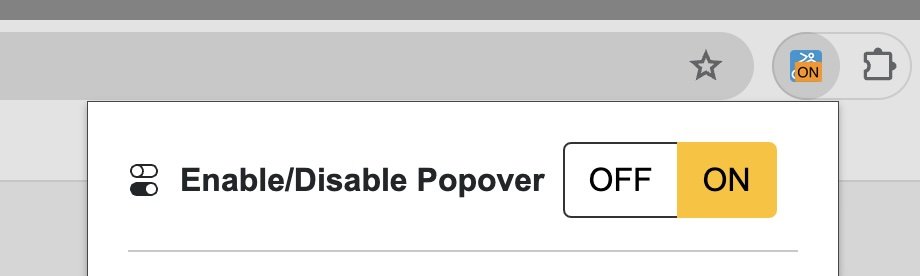
When you're done reading in your target language, you can toggle off the popover again so that it doesn't interfere with your normal browsing.
🤯 Learn New Words and Phrases
When the popover is enabled, you can select any words or phrases on any webpage, then a popover will appear with the definition. If you have the "Auto-Speak Seleted Text" setting enabled, you will hear the audio pronunciation of your selected text.
You can double-click on any single word on the webpage to look up its definition.
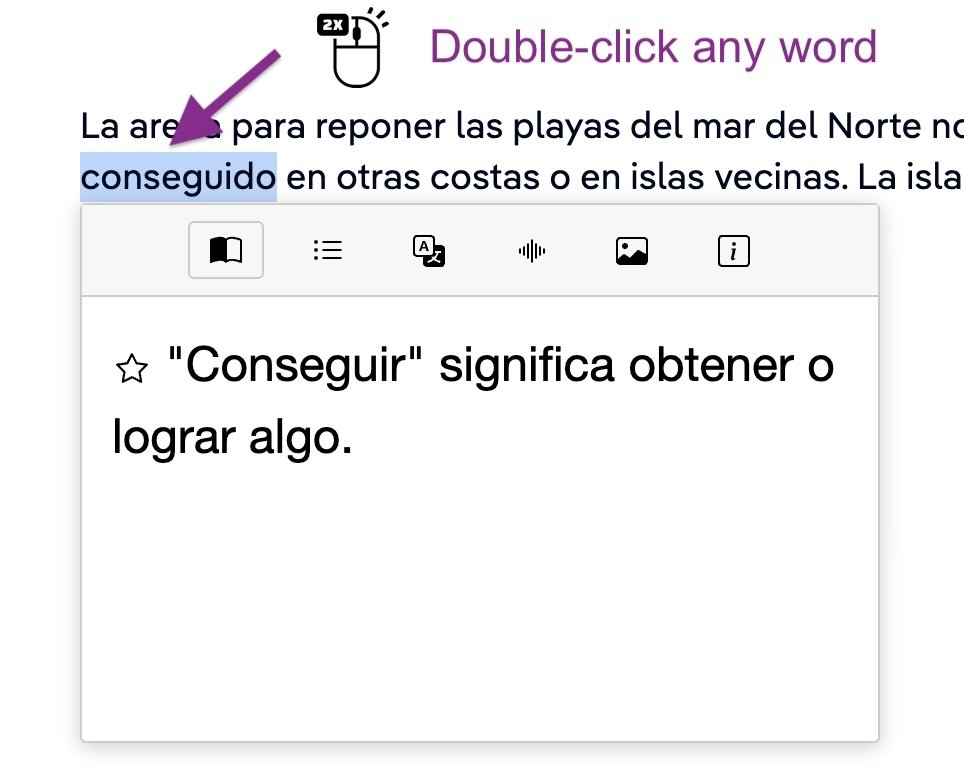
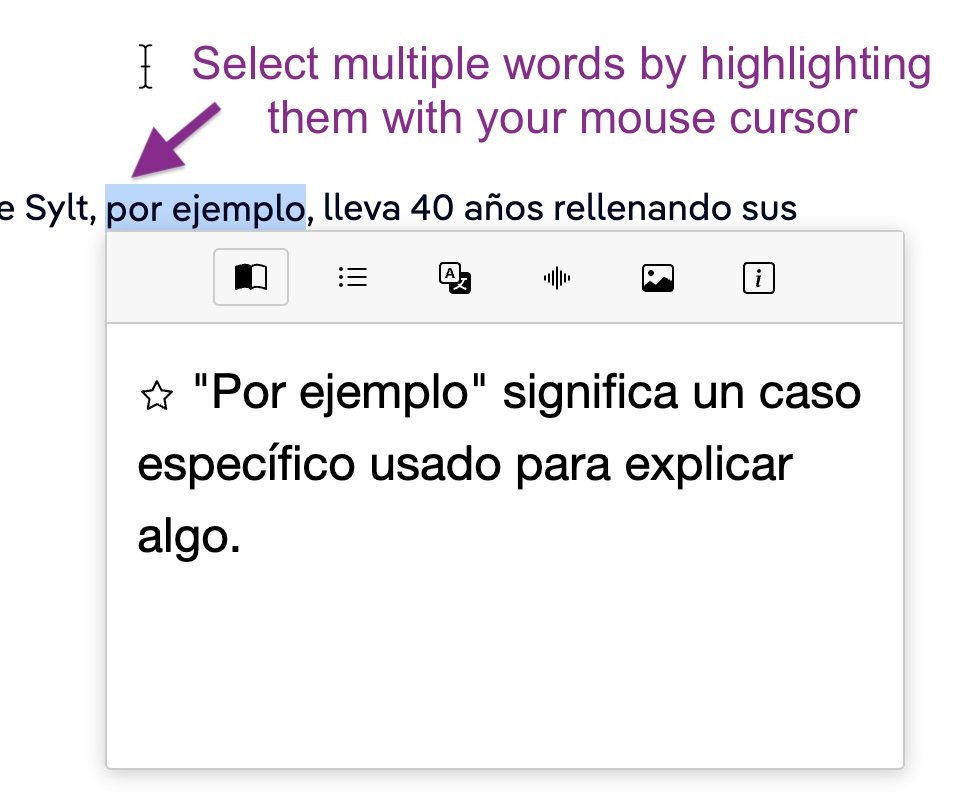
Alternatively, you can select any word or phrase by highlighting it with your mouse cursor.
This allows you to look up phrases or expressions that have multiple words.
- How to select: first move your mouse cursor to the beginning of the word or phrase, then left-click and hold, then drag the cursor to the end of the word or phrase, finally release the click.
- If the popover doesn't appear, please make sure the popover is enabled, then refresh the webpage and try again.
Popover Functionalities
By default, the popover will display the Definitions in the first tab if the selected text is short. If the selected text is long, the popover will display the Translations in the third tab instead.
You can click the other tabs to see other information, such as:
- Example Sentences
- Pronunciation Help
- Images
- Grammatical Tips
How to Select Words in Links?
If you want to select text in a link, you can install another extension called Select Like a Boss , which is not affiliated but compatible with ReadLearner.
📚 Monolingual & Bilingual Dictionaries
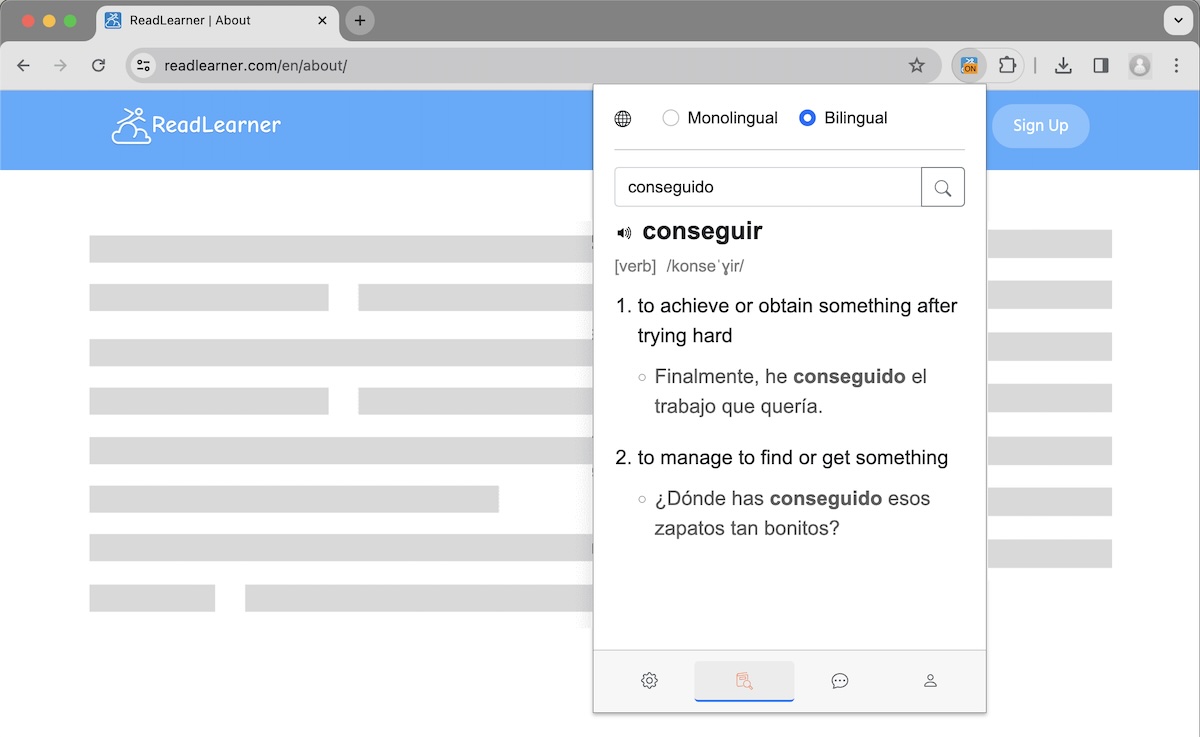
If you want to see more detailed definitions, you can click the extension icon in the browser toolbar and then click the Dictionary tab at the bottom.

The Dictionary tab will show you more detailed definitions and examples. It is also possible to switch between monolingual and bilingual dictionaries for optimal learning.
🤖 Chat with your AI Tutor
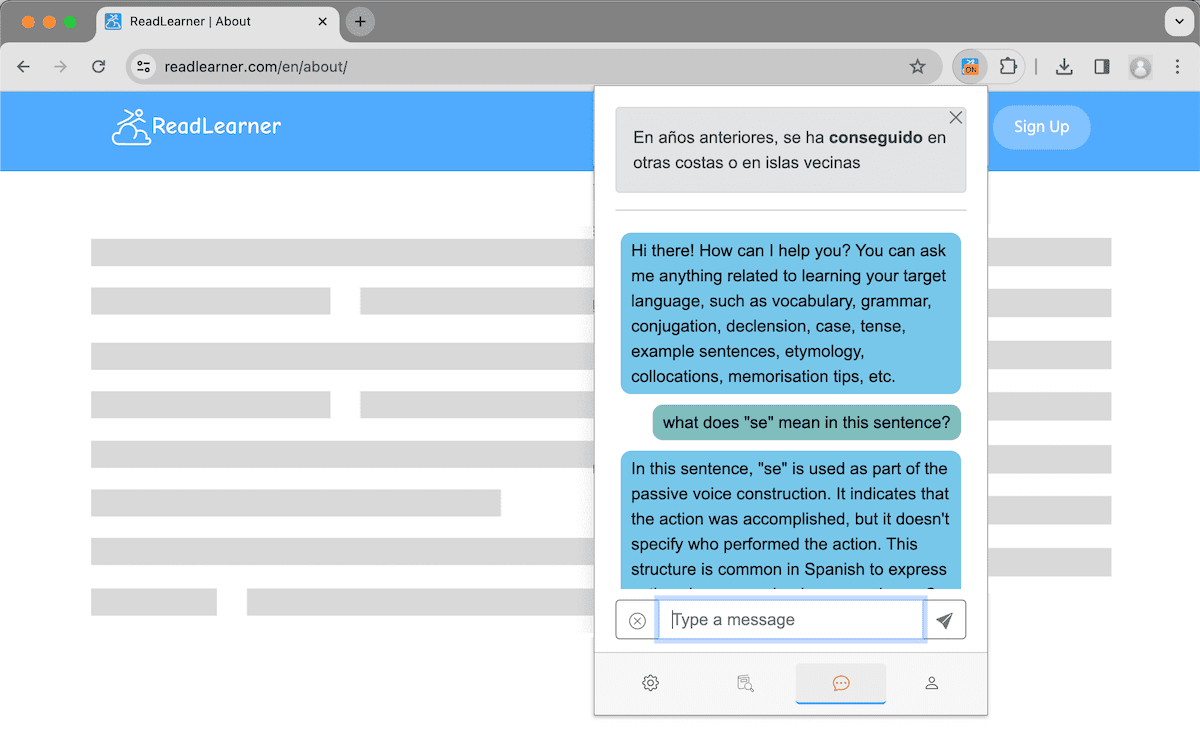
The Chat tab allows you to chat with your AI Tutor.

You can ask your AI Tutor questions about the language you're learning, such as grammar, vocabulary, or anything else related to the language.
🃏 Create & Review Flashcards
When you look up a word or phrase using the webpage popover described above, the Star button in the Definitions tab allows you to save the word or phrase as a flashcard, so that you can review it later.
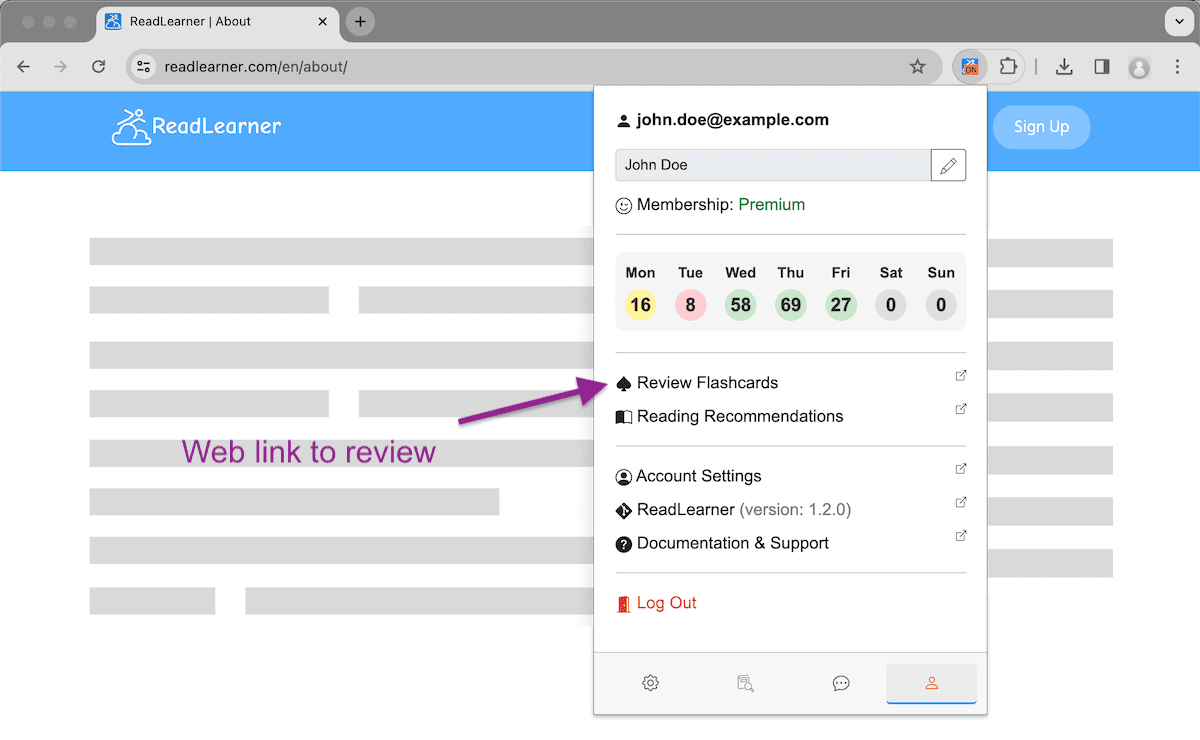
To review your flashcards, click the extension icon in the browser toolbar and then click the Profile tab at the bottom.

Here you can click the Flashcards link to review your flashcards. It's possible to review your flashcards either on your desktop or mobile device.
ℹ️ Miscellaneous
To recap, the most important points to remember:
- Enable Popover to look up words and phrases while you read.
- Disable Popover after reading so that it doesn't interfere with your browsing.
- Update Target Language every time you switch to reading in a different language.
- Create Flashcards by clicking on the Star button in the Definitions tab.
- Review Flashcards on your desktop or mobile device.
Your feedback is welcome! Tell us what you think!